
Talent In Cloud
|
Help Center
Product Tour
Schedule a Demo

We run on Intercom
Go To Talent In Cloud

Written By Saroj
Updated over a week ago
Taking an opinion from the entire recruiting team about a particular candidate is just a matter of few clicks with Jobsoid. Knowing the view of your teammates regarding a particular candidate can be very well understood through a candidate profile review.
The Review feature of Talent In Cloud has a simple design and rich functionality. You can set review criteria while creating the job opening. Only those review criteria will be shown to the interviewer for rating candidates./p>
Rating a candidate is done on the scale of 5 stars
One star rating denotes poor
Two stars mean average
Three stars mean good
Four stars mean very good
Five stars denote excellent
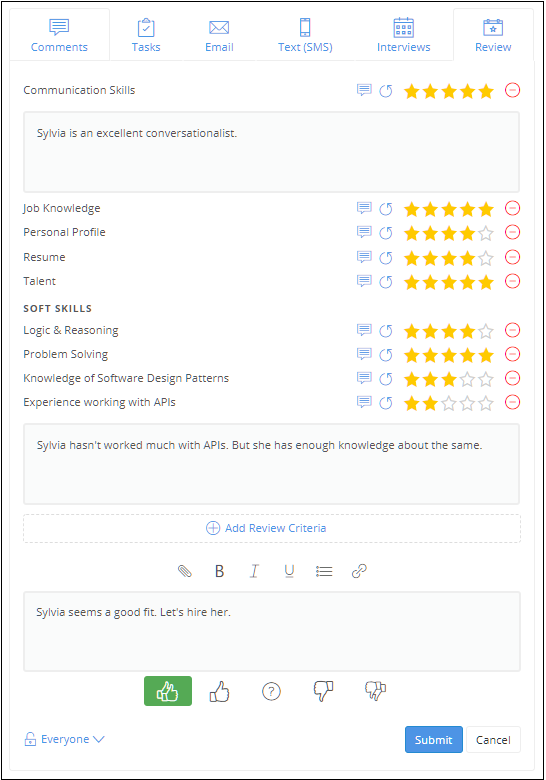
1. Go to the Reviews tab on the Candidate profile. A list of review criteria (Set when the job is created) is shown to you
2. Rate the candidate for the skills mentioned in the review criteria. If you wish to add your comment for particular criteria, you can do so by clicking on the comment icon
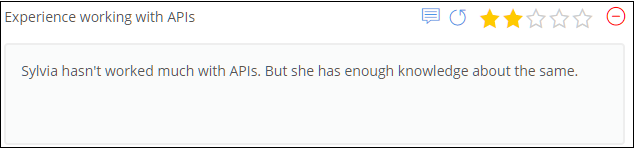
3. To cancel the rating, click on the undo icon
4. If you wish to delete the criteria, click on (-) icon
5. Add a comment for your review if you wish to. Make use of formatting options on the text editor and present your comment in a neatly formatted layout
6. Vote your candidate accordingly - Definitely yes, yes, no, definitely no and not sure
7. Set the visibility permissions to your review if required
8. Click on Submit button and save your review
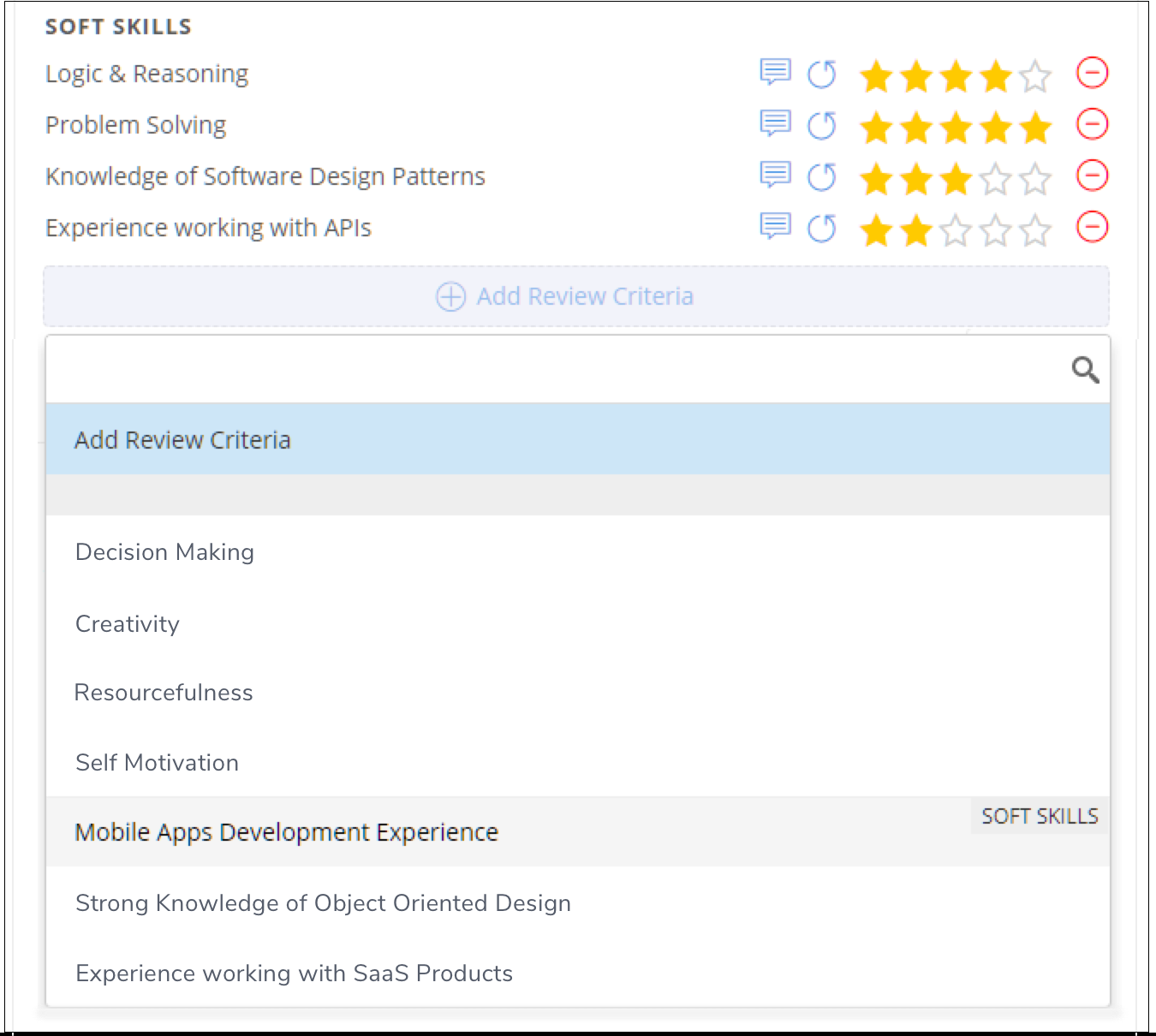
You can also add review criteria on the go. Click on (+) Add Review Criteria and choose the desired criteria from the ones suggested in the drop-down.
Your review will be shown to you as an activity on the candidate profile. It will also be shown on the scorecard.
The scorecard gives you an overview of the ratings the candidates have received. It gives you the average rating for each review criteria and the overall average rating. You can view the ratings of your team members as well.
Did this answer your question?